 |
The Top Down Game Prototype
A Basic Top Down Shooter
|
|
The Top Down Game Prototype
A Basic Top Down Shooter
|
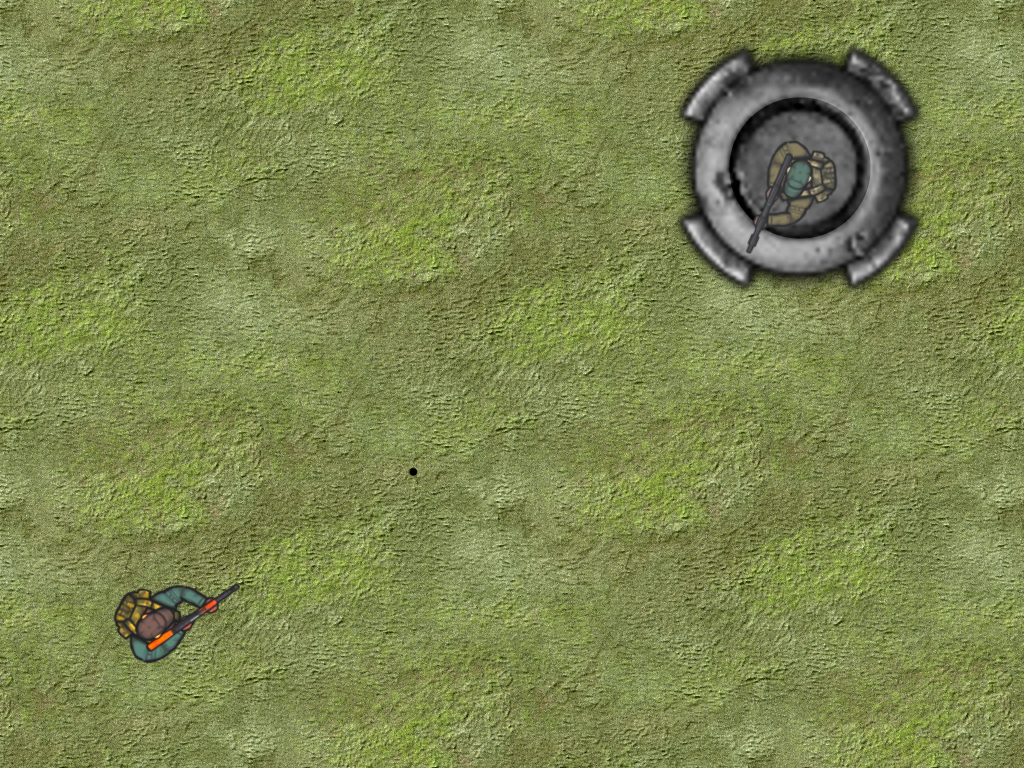
This is a simple top-down game with graphics, particle effects, and sound. The player character is a person in a brown cap with a rifle shown at bottom left in Fig. 1. There is a non-player character in a green cap standing guard in a bunker at the top right of Fig. 1. The guard will shoot at you if you are too close or if you draw attention to yourself by firing your gun. You control your character with either the the keyboard and mouse, or with an XBox controller (see Section 2). The controller takes precedence over the keyboard and mouse when it is plugged in.
The background is a simple image and the world size is its width and height, which are larger than the window. The camera follows the player but it stops at the edges of the world so that you never see anything that is outside the world. Bullets persist until they run into something, either the player, the guard, or the edges of the world, at which time a particle engine is used to mark the point of impact (a blood spatter or a small cloud of dust). The guard rotates but does not move from the bunker.
The remainder of this page is divided into five sections. Section 2 lists the controls and their corresponding actions, Section 3 tells you how to build it, Section 4 gives you a list of actions to take in the game to see some of its important features, Section 5 gives a breakdown of the code, and Section 6 addresses the question "what next?".
| Help (this document) | |||
| Toggle frame rate display | |||
| Toggle show bounding circles | |||
| Toggle show NPC state | |||
| Right thumb | Move left* | Rotate counterclockwise | |
| Right thumb | Move right* | Rotate clockwise | |
| Right button | Left button | Shoot | |
| Digital pad left | Strafe left | ||
| Digital pad right | Strafe right | ||
| Toggle God mode | |||
| Digital pad down | Retreat | ||
| Right trigger | Move forwards | ||
| Restart game | |||
| Save screenshot to a PNG file | |||
| Quit game and close the window |
* Note that the mouse cursor must be inside the game window for player rotation to occur.
This code uses SAGE. Make sure that you have followed the SAGE Installation Instructions. Navigate to the folder 1. Top Down Game in your copy of the sage-games repository. Run checkenv.bat to verify that you have set the environment variables correctly. Open Top Down Game.sln with Visual Studio and build the Release configuration. The Release executable file Top Down Game.exe will appear. Alternatively, run Build.bat to build both Release and Debug configurations.
Run Top Down Game.exe and do the following:
Move the mouse cursor into the window. Notice that the player character in the bottom left corner of the window rotates to face the mouse pointer.
With the mouse pointer over the guard, click the left mouse button to fire your gun a dozen or more times. Notice the muzzle flash from your gun and the blood spatter from the guard. At your first shot, the guard will become aware of you and rotate to start shooting at you. After the guard dies you will see its death animation, after which the game will restart.
Repeat the previous step with bounding circles and NPC state turned on (toggle these with F3 and F4, respectively). Notice that blood spatters are centered on the point of impact between a bullet and a bounding circle. Observe the guard's state changes during this process.
Restart the game by hitting the Backspace key. Turn on God mode using the G key so that the player does not die. Move the player character toward the guard by placing the mouse cursor over the guard and keeping the W key down. Notice the following:
W key to move the player to all four edges of the world. Observe what happens, and examine the code to find out why it happens. Fire the gun at the edge of the world to see the collision response particle effect. Open Top Down Game.sln in Visual Studio and examine the code in the editor while you read the rest of this section. This section assumes that you have read and understood the documentation from SAGE and The Blank Game.
CCommon contains a pointer m_pParticleEngine to a 2D particle engine to be used for static particle effects, that is, particle effects that do not move with a particular object.
There are five kinds of game objects. The base game object adds properties and functionality to Sage::CObject that are required by all objects in this game. Note that CObject is provided as a template parameter to CObjectManager and thus to Sage::CObjectManager, which means that its object list will be an array of pointers to CObject. Therefore, when object member functions are called from the object manager virtual functions will be used to elevate the call to the correct derived class.
The armed object CArmedObject adds to CObject the properties and functionality of carrying and firing a gun, which applies to both the player and the guard. The player object CPlayer adds code to CArmedObject for processing game inputs from the keyboard, mouse, and controller. The guard object CGuard adds some AI code to CArmedObject. The bullet object CBullet adds some code to CObject for bullets.
The base game object CObject is declared in Object.h and defined in Object.cpp. It is derived from Sage::CObject. GameDefines.h contains the declaration of an object enumerated type eObject and a sprite enumerated type eSprite. CObject has a protected member variable m_eObject of type eObject to identify the object type and a protected member variable m_eSprite of type eSprite to identify the sprite type. It also has protected member variables for object position, orientation, and collision circle radius, m_vPos, m_fRoll, and m_fRadius, respectively.
Public member functions include a simple Draw function that draws the object's sprite with its center at m_vPos and at orientation m_fRoll. There is also a stub Move function that contains no code. Both of these are expected to be overridden by functions in classes derived from CObject.
CObject also has a public member function CObject::CollisionResponse that is to be called whenever its collision circle overlaps that of another object. It has three parameters: a vector normal to the collision, the overlap distance, and a pointer to the object collided with. Although the latter is not used in the body of the function, which simply moves the object by the overlap distance in the direction of the collision normal, it will be used in functions overriding CObject::CollisionResponse in classes derived from CObject. Note that functions overriding CObject::CollisionResponse will call CObject::CollisionResponse as a default. CObject::CollisionResponse is called in CObjectManager::BroadPhase for collisions with the edge of the world, and CObjectManager::NarrowPhase for collisions with other objects.
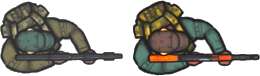
The armed object CArmedObject is declared in ArmedObject.h and defined in ArmedObject.cpp. It is derived from CObject (see Section 5.2.1). Recall that the Sage::CSpriteRenderer::Draw() function draws sprites with their center at the position specified by a parameter and optionally rotates the sprite about its center by another parameter. We saw this in action when drawing the text ring at the center of the window in the and The Blank Game. In this game the armed objects are the player and the guard, seen in Fig. 2. Notice that the sprites initially face along the positive X-axis.
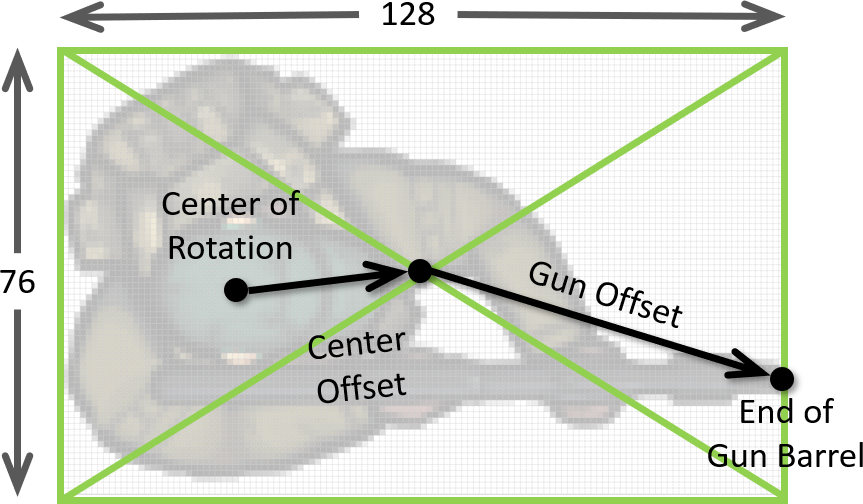
These sprites will be drawn by CArmedObject::Draw() with the center of sprite's cap at the object's position and they should rotate about that point. In order to do this we need the vector offset from the center of the object to the center of the sprite, called the center offset (see Fig. 3). This will be stored in protected member variable CArmedObject::m_vCenterOffset. We will also animate a muzzle flash particle effect at the end of the gun barrel. To do this we need the vector offset from the center of the sprite to the end of the gun barrel, called the gun offset (see also Fig. 3). This will be stored in protected member variable CArmedObject::m_vGunOffset.
CArmedObject contains a private pointer m_pLocalParticleEngine to a 2D particle engine for particle effects that move with that object. In particular we need to draw the muzzle flash (which is animated over several frames) at the end of the gun barrel, which may have moved and/or rotated from its position when the gun fired. In order to do this we will need to call Sage::CSpriteEngine2D::TranslateTo() to the translated and rotated muzzle position along with Sage::CSpriteEngine2D::Step() once per frame in CArmedObject::Move().
Another CArmedObject member function of interest is CArmedObject::RotateTowards(), which takes as parameter a 2D vector called the target and rotates the sprite so that the gun barrel is closer to pointing at the target, returning true if it is pointing "close enough" to it. See the full description of CArmedObject::RotateTowards() for more details on how this is done. CArmedObject::RotateTowards() will be used to smoothly rotate the player to face the mouse pointer (see Section 5.2.3) and for the guard to smoothly rotate to face the player under control of its AI (see Section 5.2.4).
Function CArmedObject::DeathFX() creates some particle effects to be played after the object dies. Note that this function uses the global particle engine *m_pParticleEngine inherited from CCommon, not the local particle engine *m_pLocalParticleEngine because the particle effects must persist after the object has been deleted. Firstly we create a particle that looks just like the armed object itself which fades out over a second's elapsed time and a skeleton sprite of type eSprite::Skeleton that fades in and out and moves to the upper left. CArmedObject::DeathFX() will be called from the collision response functions of CPlayer and CGuard, which will be derived from CArmedObject and are covered below.
The player object CPlayer is declared in Player.h and defined in Player.cpp. It is derived from CArmedObject (see Section 5.2.2).
The player object is said to be vulnerable to attack from the guard object whenever the player fires their gun, and for a short period afterwards. CPlayer has a private member variable m_bVulnerable that will be set to true whenever the player is vulnerable. It has a public reader function CPlayer::IsVulnerable and a public writer function `CPlayer::IsVulnerable. The former will be used by the guard to determine whether the player is vulnerable, and the latter will be used by CObjectManager to make the player vulnerable when the player fires their gun, that is, when a bullet object is created. The player will remain vulnerable until the event timer *m_pEndVulnerableEvent (an instance of Sage::CEventTimer) triggers.
Device inputs come to the player object via a public member function CPlayer::SetMovement, which has a parameter of type eDirection, an enumerated type defines in GameDefines.h. This is saved in private member variable m_eDirection and used in the call to CPlayer::Move, which overrides CObject::Move. CPlayer also has a private member variable m_vDesiredLookAtPt which will be set to the current mouse position in CGame::MouseHandler by calling CPlayer::LookAt. CPlayer::Move will call CArmedObject::RotateTowards (see also Section 5.2.2) to rotate a small amount in the direction of m_vDesiredLookAtPt. Finally, CPlayer::Move ends player vulnerability is the end vulnerable event is triggered, calls CArmedObject::Move and sets the sound player's Sage::CSound::SetListenerPos function to make sounds relative to the player's position in 2D space.
The guard object CGuard is declared in Guard.h and defined in Guard.cpp. It is derived from CArmedObject (see Section 5.2.2). CGuard is different from CPlayer in that it has code for autonomous actions instead of code for responding to player inputs. It also rotates to face the player using much the same code as the player rotating to face the mouse cursor. The guard's actions are governed by a simple finite state machine whose states and transitions may also include a certain amount of randomness provided by the pseudo-random number generator pointed to by m_pRandom (inherited from Sage::CComponent) an instance of Sage::CRandom.
CGuard includes the private definition of an enumerated type CGuard::eState, consisting of the following states.
CGuard::eState::Alert - aware of player and firing at it.CGuard::eState::Waiting - not rotating, just staring off into the distance.CGuard::eState::Scanning - turning slowly either clockwise or counterclockwise.CGuard::eState::Reloading - reloading the gun and displaying the Reload Animation.CGuard has a protected member variable m_eState of type CGuard::eState that stores the guard's current state. As described in Section 2, hitting F4 on the keyboard will toggle the drawing of white text describing the guard's current state. For example Fig. 4 shows the guard in state CGuard::eState::Scanning. This text is drawn by calling the protected member function CGuard::DrawState from CGuard::Draw. CGuard::DrawState calls CGuard::GetStateString to convert m_eState to a (wide) string that is then drawn to the screen by calling Sage::CRenderer3D::DrawScreenText, which is inherited by Sage::CSpriteRenderer.
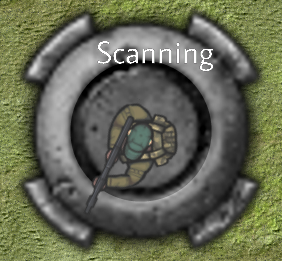
CGuard::ChangeState is called whenever the guard's state is to be changed. It sets m_eState to the new state and sets various other variables in a switch statement that depends on the new state. Instances of Sage::CEventTimer pointed to by m_pWaitEvent, m_pAlertEvent, and m_pScanningEvent are used to move out of CGuard::eState::Waiting, CGuard::eState::Alert, and CGuard::eState::Scanning, respectively, after the appropriate amount of time has passed. The guard moves out of state CGuard::eState::Reloading once all frames of the reloading animation have been displayed.
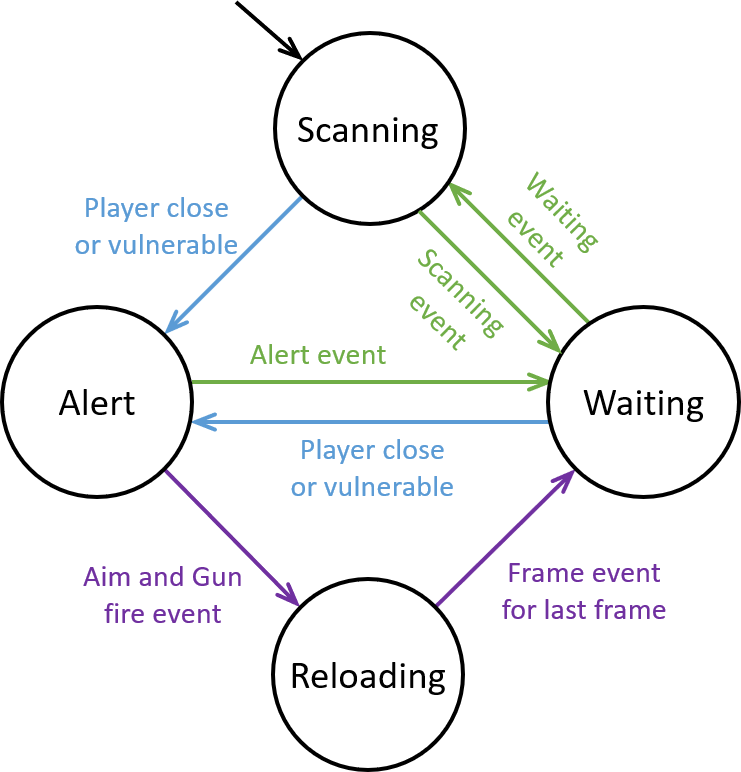
The guard state machine is shown in Fig. 5. The circles represent the four states. The arrow into the top state indicates that it is the initial state. The other arrows represent transitions between states and have labels indication the conditions required for a change of state along that transition. The blue arrows indicate Boolean conditions in the code. The green arrows indicate events that need to be triggered. The purple arrow are a combination of Boolean conditions and events. Recall that events trigger after a certain period of time.
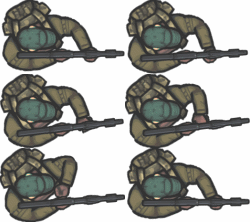
Every time the guard files a bullet, it displays a reload animation as shown in Fig. 6. The animation frames are loaded from a sprite sheet as shown in Fig. 7.
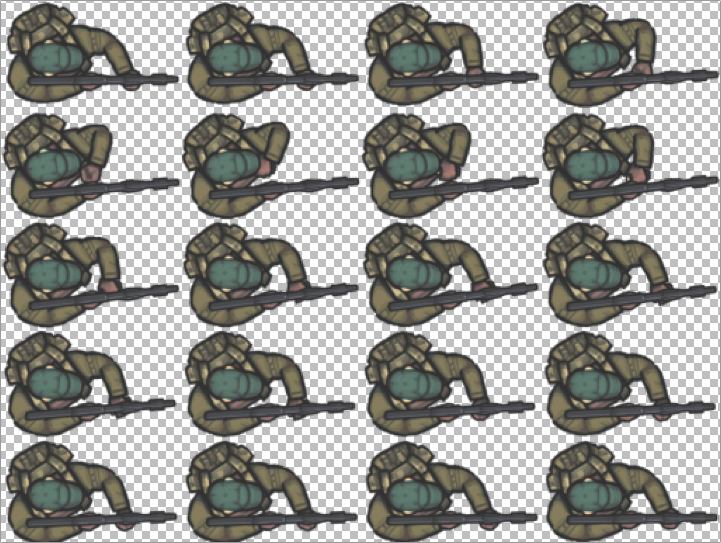
All that has to be done to enable sprite animation is to modify GameSettings.xml to describe where the individual frames are on the sprite sheet, add code to CGame::LoadSprites to load them in, and add code to CGuard::Draw function to change frames over time.
In addition to the single-frame-in-a-file <sprite> tags we used in GameSettings.xml in The Blank Game, we can load multiple frames from a sprite sheet as follows. Firstly we create a <sprite> </sprite> pair describing the sprite sheet, enclosing a list of <frame> tags describing the frames. The <sprite> tag has a name field for the name to be used in the code, a sheet field for the sprite sheet files name, and a frames field for the number of frames. The <frame> tag has a field index for the frame index and four fields describing the bounding rectangle in the sprite sheet, specifically its left, right, top, and bottom position measured in pixels. Note that the Y-coordinate is measured from the top of the image.
We can then load the sprite from this description with the line
in CGame::LoadSprites using the name field from the <sprite> tag as the second parameter. The frame number is a static local variable nCurFrame in CGuard::Draw which is incremented after a period of time governed by the Sage::CEventTimer pointed to by m_pFrameEvent. This is then put into the m_nCurrentFrame variable in a 2D sprite descriptor (see Sage::CSpriteDesc2D), the remainder of which is filled in before being passed to the version of Sage::CSpriteRenderer::Draw that takes a pointer to a 2D sprite descriptor Sage::CSpriteDesc2D as a parameter.
CGuard::Move takes action based on the guard's current state, and calls CGuard::ChangeState to change state based on the player's position and vulnerability, and various event timers. It finishes with a call to CArmedObject::Move.
CGuard has a collision response function CGuard::CollisionResponse that overrides CArmedObject::CollisionResponse. It takes care of collisions with a bullet, including blood spatter particle effect, reduction in health, and death if appropriate.
The bullet object CBullet is declared in Bullet.h and defined in Bullet.cpp. It is derived from CObject (see Section 5.2.1). CBullet has a private member function m_vVelocity, which is used in CBullet::Move to change the bullet's position by an amout proportional to the velocity multiplied by frame time. Bullets die when colliding with the edges of the world or another object in CBullet::CollisionResponse, with the appropriate sound and particle effects (a puff of dust when colliding with the edge of the world, and a blood spatter when colliding with the player or the guard).
The object manager CObjectManager is declared in ObjectManager.h and defined in ObjectManager.cpp. It is derived from Sage::CObjectManager<CObject>. CObjectManager::NarrowPhase performs collision detection and response for two objects. It gets called once per pair of objects in Sage::CObjectManager<CObject>::BroadPhase. If the bounding circles of the two objects overlap, then it calls both object's CollisionResponse functions, which by the power of virtual functions will be either CObject::CollisionResponse, CPlayer::CollisionResponse, CGuard::CollisionResponse, or CBullet::CollisionResponse, depending on the object type. Bounding circles have a radius of CObject::m_fRadius and are centered at CObject::m_vPos, that is, the object's center of rotation. As described in Section 2, hitting F3 on the keyboard will toggle the drawing of the guard's and the player's collision circles as shown in Fig. 8. Note that since the bounding circle of the player and the guard are more-or-less tightly inscribed around their respective torsos, only bullet hits to the torso will count.
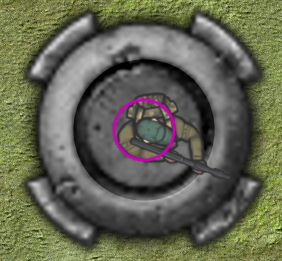
CObjectManager::BroadPhase calls Sage::CObjectManager<CObject>::BroadPhase to do object-object collision detection and response, then does collision detection and response for objects and the edges of the world, using CObjectManager::AtWorldEdge to detect the edges of the world from the width and height of the background sprite.
CObjectManager also has a handy function CObjectManager::Create to instantiate objects and insert them into the object list. In The Blank Game this was handled in CGame::BeginGame but it makes sense to do it in the object manager now.
CObjectManager::FireGun fires a gun from an instance of CArmedObject by creating a bullet object of the appropriate type and a muzzle flash particle effect at the exit of the gun barrel using CArmedObject::GetViewVector to find the direction that the gun is pointing and CArmedObject::GetGunOffset (see Fig. 3) to get the (rotated) offset from the sprite center to the end of the gun barrel. To make things a little harder a small random deflection is added to each bullet so that consecutive bullets follow slightly different paths. Pseudo-randomness is provided an the instance of Sage::CRandom, a pointer to which is inherited from Sage::CComponent.
The most significant changes to CGame are for processing inputs from the mouse and controller, a follow camera that moves the window with the player, and a new game state that allows the game to restart after a few seconds delay to allow death animations to complete when the game is over.
In addition to the keyboard handler CGame::KeyboardHandler modified from The Blank Game, CGame now has a mouse handler CGame::MouseHandler and an XBox controller handler CGame::ControllerHandler (refer back to Section 2 for the mouse and controller input mappings). The former uses a pointer to a mouse handler m_pMouse and the latter uses a pointer to a controller handler m_pController, both of which are inherited from Sage::CComponent.
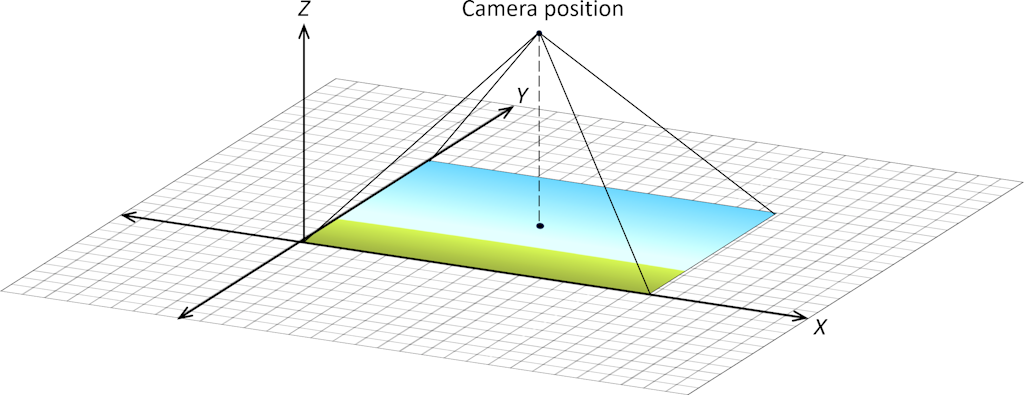
In The Blank Game you probably weren't even aware of the camera, which is positioned above the center of the background along the Z axis (see Fig. 9). Everything in the view frustum, the pyramid drawn with its apex at the camera position in Fig. 9, is projected onto the window, so that everything appears to be in 2D, not 3D.
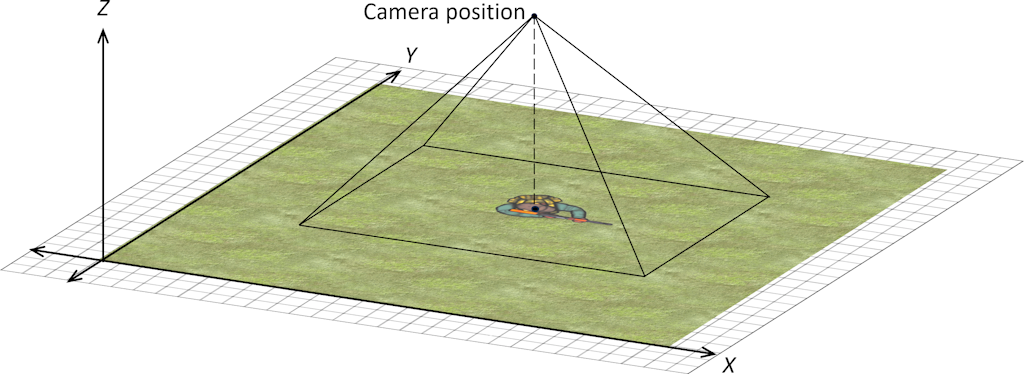
Now function CGame::FollowCamera positions the camera above the player (see Fig. 10),except when the player object is close to the top, bottom, left, or right of the world, in which case the camera stops with the edge of the background image at the corresponding edge of the window (see Fig. 11).
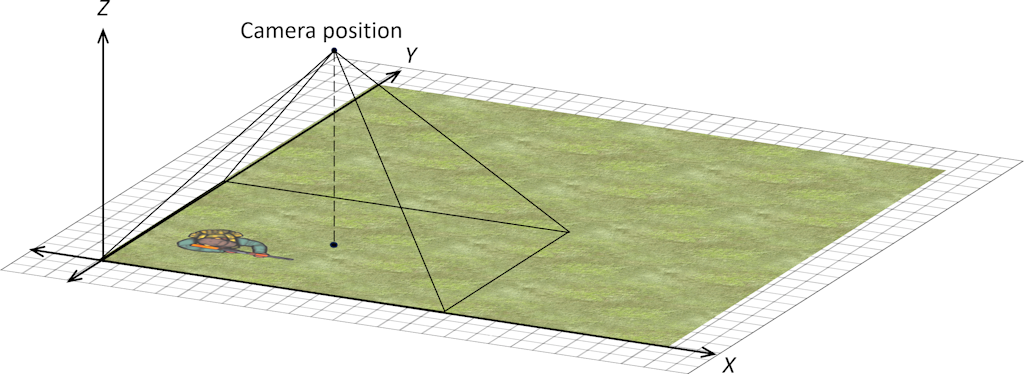
The new position of the camera is computed in local variable vCameraPos and passed to the renderer using Sage::CSpriteRenderer::SetCameraPos. CGame::FollowCamera is called once per frame in CGame::ProcessFrame.
CGame::ProcessState is slightly more complicated than it was in The Blank Game. The enumerated type eGameState in GameDefines.h now has a third member eGameState::Waiting. The game will be in this state for a few seconds after the game has been completed by the death and death animation of either the player of the guard, after which the game will be restarted and again enter state eGameState::Playing.
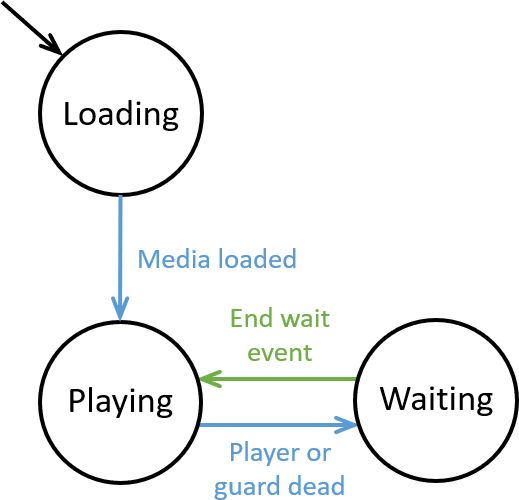
The game state machine is shown in Fig. 12. The circles represent the three states. The arrow into the top state indicates that it is the initial state. The other arrows represent transitions between states and have labels indication the conditions required for a change of state along that transition. The blue arrows indicate Boolean conditions in the code. The green arrows indicate events that need to be triggered.
Next, take a look at the Top Down Tiled Game.
 1.12.0