 |
The Blank Game
A Blank 2D Game with Sound and a Sprite
|
|
The Blank Game
A Blank 2D Game with Sound and a Sprite
|
This is pretty much what it says, a blank 2D game with a grassy hill in the background and a rotating sprite of some amusing text (see Fig. 1). Its purpose is to get you started quickly on the basics of making a 2D game with SAGE (see Section 3). You can also use it to start development of a new game.
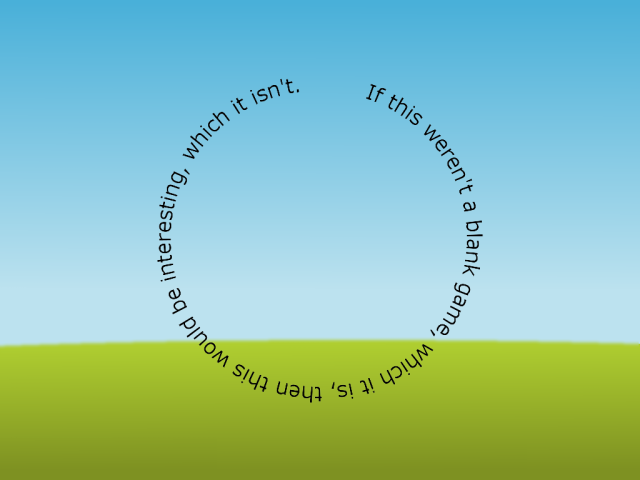
The remainder of this page is divided into five sections. Section 2 lists the keyboard controls and their corresponding actions, Section 3 is a reminder to install SAGE, the Simple Academic Game Engine, Section 4 describes the media used by the Blank Game, including images, sounds, and fonts, Section 5 gives a breakdown of the code for the Blank Game, and Section 6 addresses the question "what next?".
| F1 | Help (this document) |
| F2 | Toggle frame rate display |
| Space Down | Play a clang sound |
| Space Up | Play a grunt sound |
| Backspace | Restart game |
| P | Save screenshot to a file |
| Quit game and close the window |
This code uses SAGE. Make sure that you have followed the SAGE Installation Instructions. Navigate to the folder Blank 2D Game in your copy of the SAGE repository. Run checkenv.bat to verify that you have set the environment variables correctly. Run Build.bat. The Release executable file Blank Game.exe will appear. When you run it you will see something similar to Fig. 1 with the text wheel rotating about its center. Experiment with the keyboard commands listed in Section 2.
The media for this game, consisting of fonts, images, sounds, and XML files, can be found in the folder Media in the solution folder. These can be found in sub-folders Fonts, Images, Sounds, and XML, respectively. You can change the names of the first three folders provided you also make the changes indicated in Section 4.4.
The remainder of this section is divided into four subsections describing fonts (Section 4.1), images (Section 4.2), sounds (Section 4.3), and XML files (Section 4.4).
The Fonts folder contains a font in spritefont format, AverageSans_24.spritefont. This font is licensed under the SIL Open Font License, Version 1.1, a copy of which you will find in file OFL.txt. It was converted to spritefont format using https://github.com/microsoft/DirectXTK12/wiki/SpriteFont, which you can find in your DirectXTK12 download (provided you followed the instructions when you installed SAGE, see Section 3).
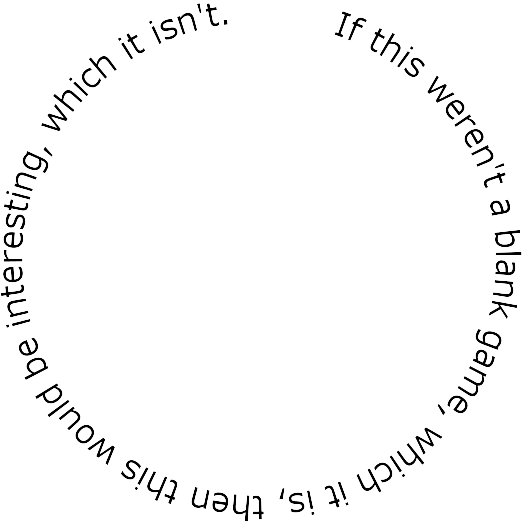
The Images folder contains two image files in PNG format. The background image background.png shown in Fig. 2, and the text wheel shown in Fig. 3. The file names can be changed provided you also make the changes indicated in Section 4.4.

The Sounds folder contains two sound files in WAV format. The file clang.wav contains a clang sound, and umph.wav contains a grunting sound. The file names can be changed provided you also make the changes indicated in Section 4.4. Note that the sound files must be in mono (single track) format, otherwise bad things might happen.
The XML folder contains a single XML file called GameSettings.xml that contains settings. The contents of the file are bracketed in <settings> and </settings> tags.
The following tags can appear between these two tags in any order. the game and renderer tag (Section 4.4.1), the font tag (Section 4.4.2), the sprite tags (Section 4.4.3), and the sound tags (Section 4.4.4).
The tag <game> lets you specify the name of the game, which will be displayed at the top of the game window. The tag <renderer> lets you specify the width and height in pixels of the user part of the game window.
The tag <font> lets you specify the name and location of the text font file.
The <sprites> tag lets you specify the path to the images folder. It is followed by a list of <sprite> tags, one for each sprite in the game including the background image, and is closed by a </sprites> tag. Each <sprite> tag has a name field and a file field. The name field contains a string that will identify the sprite in the game's C++ code, and must be consistent with that code. The file field contains the name of the image file and may be changed without the need to recompile the game should you decide to rename the file. The name field and the file field for any given sprite may be completely different, should you feel the need to do so. The <sprite> tags may appear in any order inside the <sprites> and </sprites> tags.
The <sounds> tag lets you specify the path to the sound folder. It is followed by a list of <sound> tags, one for each sound effect in the game including the background image, and is closed by a </sound> tag. Each <sound> tag has a name field, a file field, and an instances field. The name field contains a string that will identify the sound in the game's C++ code, and must be consistent with that code. The file field contains the name of the sound file and may be changed without the need to recompile the game should you decide to rename the file. The name field and the file field for any given sound may be completely different, should you feel the need to do so. The instances field specifies how many instances of a sound can be played simultaneously. The larger this number is, the more sound memory must be used. It is typically between 1 and 8. The <sound> tags may appear in any order inside the <sounds> and </sounds> tags.
Open Blank Game.sln in Visual Studio and examine the code in the editor while you read the rest of this section, which is divided into two subsections. Section 5.1 breaks down the code in Main.cpp. Section 5.2 breaks down the code for CGame, the object-oriented game code.
Main.cpp should be identical in all SAGE games except for commenting in and out a single line of code to activate the optional debug console (see Section 5.1.1) and memory leak detector (see Section 5.1.2). Function wWinMain sets things up so that your implementation of CGame::Initialize is called at the correct time during initialization, CGame::ProcessFrame is called as often as possible to compose and render a frame of animation, and CGame::Release is called at the correct time during game shutdown. CGame will be discussed in more detail in Section 5.2. The heavy lifting here is done by calling Sage::WinMain where you can see the details of Windows code initialization including the message pump. At this stage you can safely ignore these details, however.
SAGE includes an optional text debug window that can be used in both Debug and Release modes. If the line:
in Main.cpp is uncommented as follows:
then a debug console window will appear at the same time as the game window. All text output to stdout using, for example, printf or iostream will appear in this window. For example, the line:
or the line:
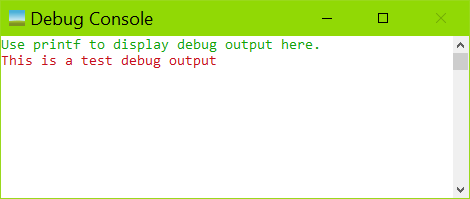
inserted into a function such as CGame::LoadSprites will result in the output shown in the debug console in Fig. 4. Your debug text will be in red and directions will be in green text.
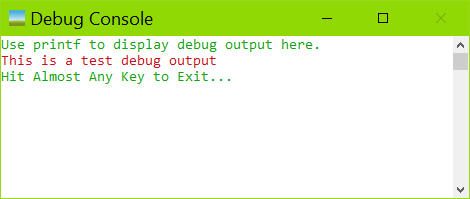
The debug console window will persist after you quit your game in order to preserve debug output. Click on it to gain focus and press, for example, the space key to close it down as shown in Fig. 5
The #define for the debug console is commented out by default, which means that the console window will not appear and all text output will go to /dev/null.
If you choose to not install Visual Leak Detector (see Section 4), then comment out the following line:
CCommon is an Accessor (see SAGE Data Design Patterns) that contains variables that need to be shared between various classes. Its declaration is in Common.h and its definition is in Common.cpp. We use it to avoid using global variables (which are discouraged in object-oriented programming) and to avoid cluttering up the parameter lists of functions that need to access them. In the Blank Game, CCommon consists of a single static member variable, a pointer to a renderer CCommon::m_pRenderer, which is initialized to nullptr.
CObject is the abstract representation of a game object. Its declaration is in Object.h and its definition is in Object.cpp. See CObject More Details for more details.
CGame is the object-oriented representation of your game. Its declaration is in Game.h and its definition is in Game.cpp. In addition, there are some useful defines and enumerated types in GameDefines.h.
As mentioned in Section 5.1, CGame::Initialize contains initialization code and will be called once only when your game starts. It creates a DirectXTK12 renderer (an instance of Sage::CSpriteRenderer) pointed to by CCommon::m_pRenderer. The parameter Sage::eSpriteMode::Batched2D to the sprite renderer directs it to use batched mode sprite renderer from DirectXTK12. It then creates an instance of Sage::CObjectManager<CObject> to manage the game objects (see Section 5.3)and saves a pointer to it in member variable CGame::m_pObjectManager. Finally, it calls CGame::LoadSprites (see Section 5.4.2) to load the game sprites and CGame::LoadSounds (see Section 5.4.3) to load the game sounds.
CGame::LoadSprites loads sprites for the background and the text wheel. For convenience, the following enumerated type is declared in GameDefines.h.
These will be used to refer to the sprites in the source code. CGame::LoadSprites first declares a Sage::CMediaList of type eSprite.
It then inserts information about the two game sprites into this media list.
The first parameter is the eSprite entry for the sprite (its name within the source code) and a string (its name in GameSettings.xml). This string must be identical to the string in the name field of a sprite tag in GameSettings.xml (see Section 4.4.3). It then calls Sage::CSound::LoadMT to load the sprites asynchronously in a separate thread. (Recall that CGame has a pointer to an instance of Sage::CSpriteRenderer in member variable m_pRenderer, which it inherited from CCommon, see Section 5.2).
CGame::LoadSprites will exit immediately and computation will proceed while the sprites load. If you wish to load the sprites synchronously so that CGame::LoadSprites returns only after the sprites have been loaded (for example, during debugging), use the following instead.
CGame::LoadSounds loads sounds. For convenience, the following enumerated type is declared in GameDefines.h.
These will be used to refer to the sounds in the source code. CGame::LoadSounds first declares a Sage::CMediaList of type eSound.
It then inserts information about the two game sounds into this media list.
The first parameter is the eSound entry for the sound (its name within the source code) and a string (its name in GameSettings.xml). This string must be identical to the string in the name field of a sound tag in GameSettings.xml (see Section 4.4.4). It then calls Sage::CSound::LoadMT to load the sounds asynchronously in a separate thread. CGame inherits a pointer m_pSound to an instance of Sage::CSound from Sage::CComponent.
CGame::LoadSounds will exit immediately and computation will proceed while the sounds load. If you wish to load the sounds synchronously so that CGame::LoadSounds returns only after the sounds have been loaded (for example, during debugging), use the following instead.
As mentioned in Section 5.1, CGame::ProcessFrame contains code that creates and displays the next frame of animation. SAGE will ensure that this function will be called repeatedly in a loop that terminates only when the game exits.
The behavior of CGame::ProcessFrame will depend on the current state of the game, which is recorded in CGame::m_eGameState, which is of type eGameState, declared in GameDefines.h as:
CGame::m_eGameState is initially set to eGameState::Loading and we will change it to eGameState::Playing when the (possibly asynchronous) loading of sprites and sounds is finished.
The first thing that CGame::ProcessFrame does is call the keyboard handler CGame::KeyboardHandle). CGame inherits from Sage::CComponent a pointer m_pKeyboard to an instance of Sage::CKeyboard which provides functions to poll the current state of a key on the keyboard. CGame::KeyboardHandler first calls:
Then, for example, a call to:
will return true if the F1 function key was up and went down during the current frame. The keys are identified using virtual-key codes. An often-missed observation is that the virtual key code for alphanumerics is the corresponding upper-case character, so for example, the virtual-key code for the letter A is not VK_A, it is 'A' and can be used as follows:
If the current game state is not eGameState::Loading (see Section 5.4.4.1) then CGame::ProcessFrame does the following. CGame inherits from Sage::CComponent a pointer m_pSound to an instance of Sage::CSound, which provides functions to play and mix sounds asynchronously. Function Sage::CSound::BeginFrame is then called to notify the sound player that a new animation frame has begun.
This is used internally to SAGE to prevent any sound being started twice (or more) in any given frame - which would result in the sound being played at twice (or more) the volume.
CGame also inherits from Sage::CComponent a pointer m_pTimer to an instance of Sage::CTimer, which provides functions to accurately measure time. The motion of all game objects should be proportional to frame time, otherwise things would move faster on a 60Hz monitor than on a 30Hz monitor. References to the timer should be inside a Sage::CTimer::Tick functor as follows:
We want to rotate the text wheel sprite by an angle proportional to the frame time. The frame time is obtained by calling:
which returns the frame time in seconds as a float.
CGame has a member variable m_pSpriteDesc which will point to a sprite descriptor Sage::CSpriteDesc2D that records properties of the sprite such as its screen coordinates and angle of orientation. Its orientation is stored in m_pSpriteDesc->m_fRoll in radians. CGame::ProcessFrame does the following once per frame:
The 0.125f multiplier ensures that the text wheel rotates once every 8 seconds.
CGame::ProcessFrame then renders an animation frame by calling CGame::RenderFrame. All rendering must be done between calls to Sage::CSpriteRenderer::BeginFrame and Sage::CSpriteRenderer::EndFrame). (Recall that CGame has a pointer to an instance of Sage::CSpriteRenderer in member variable m_pRenderer, which it inherited from CCommon, see Section 5.2).
If the game has finished loading sounds and sprites, that is, if m_eGameState is not eGameState::Loading, then we draw an animation frame by first drawing the background with a call to:
Note that CGame inherits m_vWinCenter, a 2D vector Vector2 containing the position of the center of the user rectangle in the game window from Sage::CSettings. We then draw the text wheel sprite at its current orientation using:
Since the background is drawn first, the text wheel will be drawn on top of it (transparent pixels in the text wheel are omitted, naturally). (Recall from Section 5.4.1 that our instance of Sage::CSpriteRenderer uses batched mode sprite rendering from DirectXTK12). This method of rendering from back to front is called painter's algorithm.
On the other hand, if the game is still loading sounds and sprites, that is, if m_eGameState is eGameState::Loading, then we draw the text Loading... at the center of the window using Sage::CSpriteRenderer::DrawCenteredText:
You probably won't see this text in the Blank Game, or you might see it for a fraction of a second, but you will see it on SAGE games that have many more, and/or much larger sprites and sounds, particularly if you don't have a solid state hard drive.
Finally, if the CGame member variable m_bDrawFrameRate is set to true, which happens in CGame::KeyboardHandler in response to the F2 key, then CGame::DrawFrameRateText is called to draw the frame rate obtained from m_pTimer->GetFPS() at the top right of the screen.
CGame::ProcessState processes any changes to the game state that occurred in the current frame. In the Blank Game this is very simple. If m_eGameState is eGameState::Loading, we query the renderer and the sound player to see whether they have finished loading, that is, m_pRenderer->Loaded() returns true and m_pSound->Loaded() returns true. If so, we call CGame::BeginGame, which sets m_eGameState to eGameState::Playing, clears any old objects from the object manager, and creates an instance of CSprite for the text wheel at the center of the screen and inserts it into the object manager.
Note that CGame::BeginGame is also called from CGame::KeyboardHandler in response to the Backspace key. Care must be taken here to avoid memory leaks and crashes in your own game. Recall that Visual Leak Detector (see Section 4) can be used in Debug mode to detect memory leaks.
As mentioned in Section 5.1, CGame::Release contains shutdown code and will be called once only when your game shuts down. All it needs to do is delete the instance of Sage::CSpriteRenderer), which takes care of the details of shutting down DirectX 12. It is important that this gets done before the destructor CGame::~CGame is called.
What's next are some more games and some physics games and toys
 1.12.0