 |
Tiled Platformer Prototype
A Basic Tiled Platformer
|
|
Tiled Platformer Prototype
A Basic Tiled Platformer
|
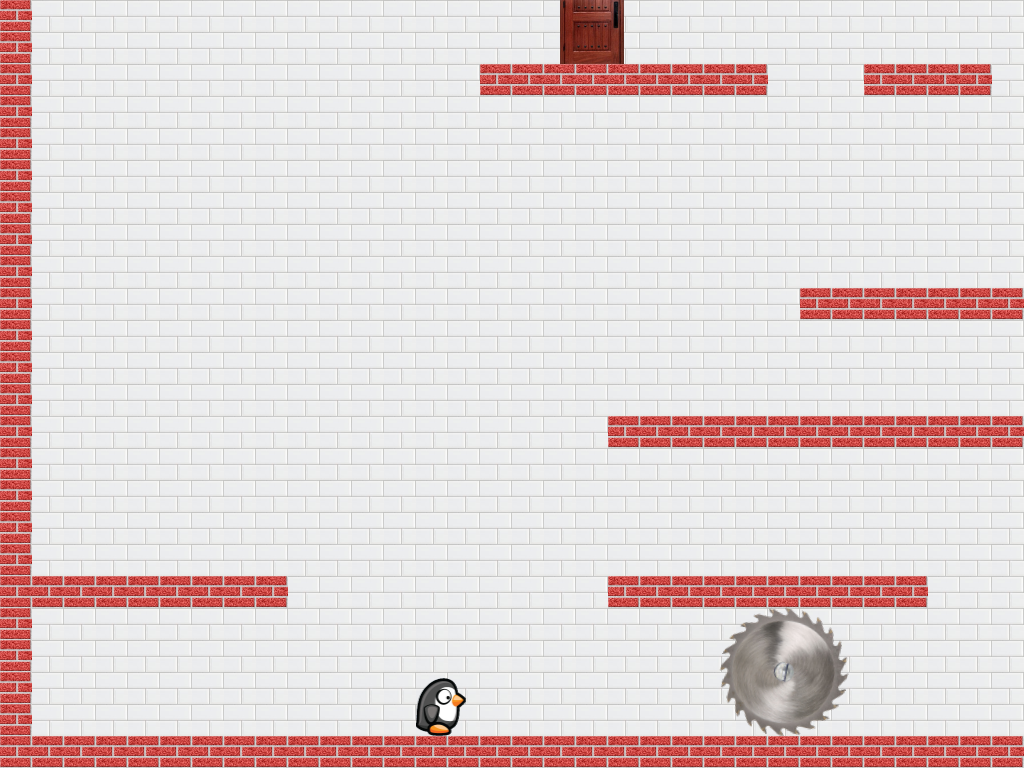
This game is similar to The Top Down Game but there is now gravity pulling the characters down to the bottom of the window, so the horizontal walls now act as platforms. The player character is now a penguin, as shown in the screenshot in Fig. 1.
The remainder of this page is divided into four sections. Section 2 lists the controls and their corresponding actions, Section 3 tells you how to build it, Section 4 gives you a list of actions to take in the game to see some of its important features, Section 5 gives a breakdown of the code, and Section 6 addresses the question "what next?".
| Help (this document) | ||
| Toggle frame rate display | ||
| Toggle show bounds | ||
| Digital pad left | Walk left | |
| Digital pad right | Walk right | |
| Digital pad up | Jump | |
| Restart game | ||
| Save screenshot to a PNG file | ||
| Quit game and close the window |
This code uses SAGE. Make sure that you have followed the SAGE Installation Instructions. Navigate to the folder 3. Tiled Platformer in your copy of the sage-games repository. Run checkenv.bat to verify that you have set the environment variables correctly. Open Tiled Platformer.sln with Visual Studio and build the Release configuration. The Release executable file Tiled Platformer.exe will appear. Alternatively, run Build.bat to build both Release and Debug configurations.
Run Tiled Platformer.exe and do the following.
Open Tiled Platformer.sln in Visual Studio and examine the code in the editor while you read the rest of this section. This section assumes that you have read and understood the documentation from SAGE, The Blank Game, The Top Down Game, and The Top Down Tiled Game.
How does this code differ from that of the The Top Down Tiled Game? Firstly, there are a lot of minor changes to take account of the fact that our player sprite doesn't need a center offset and that there aren't any NPCs or any shooting.
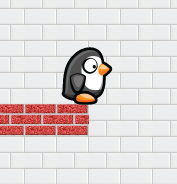
CObject is used for the door and the saw and CPlayer, which is derived from CObject, is used for the player. In CPlayer::Move, a constant times the frame time is added to CPlayer::m_vVelocity to simulate acceleration due to gravity. As in The Top Down Tiled Game's CBullet::Move function, a constant times frame time times CPlayer::m_vVelocity is then added to CPlayer::m_vPos. CPlayer::CollisionResponse is now more complicated, for example, it sets a Boolean variable CPlayer::m_bOnGround to true if the player is on top of a platform, that is, the collision normal points vertically upwards. CPlayer::m_bOnGround is set to false at the end of CPlayer::Move (since it may have moved off a platform), then corrected in CPlayer::CollisionResponse and is used in those functions, also in CPlayer::Draw to select between the jumping and other player sprites, and in CPlayer::SetAction to prevent double-jumping.
Next, take a look at the 2.5D Side Scroller.
 1.12.0