 |
Box2D Bouncy Things Toy
Game Physics with a 2D Physics Engine
|
|
Box2D Bouncy Things Toy
Game Physics with a 2D Physics Engine
|
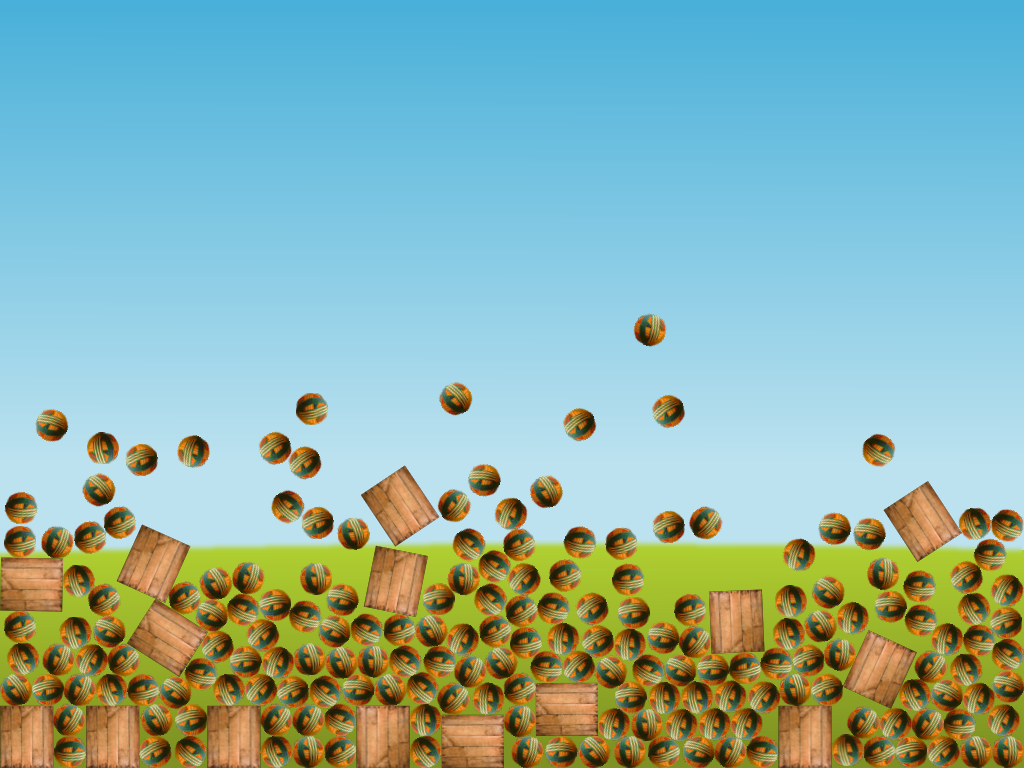
This is a simple toy that lets you see how easy it is to get started with Box2D. It does not have sound, so don't worry when you don't hear any. The next few code demos after this one will drill down into Box2D more deeply, so don't be concerned if you don't fully understand all of the code here. We do however recommend that you briefly examine the Box2D manual (which should be in the folder in which you installed Box2D from GitHub) before reading the code and documentation for this toy. Fig. 1 shows a screen shot with some balls and boxes bouncing around inside the window.
The remainder of this page is divided into five sections. Section 2 lists the controls and their corresponding actions, Section 3 tells you how to build it, Section 4 gives you a list of actions to take in the game to see some of its important features, Section 5 gives a breakdown of the code, and Section 6 addresses the question "what next?".
| Help (this document) | |
| Toggle draw mode from "sprites only", to "sprites and lines", to "lines only" | |
| Reset | |
| Drop stuff | |
| Save screenshot to a file | |
| Quit game and close the window |
This code uses SAGE and Box2D. Make sure that you have followed the SAGE Installation Instructions and the Box2D Installation Instructions. Navigate to the folder 7. Box2D Bouncy Things Toy in your copy of the sage-physics repository. Run checkenv.bat to verify that you have set the environment variables correctly. Open Bouncy Things Toy.sln with Visual Studio and build the Release configuration. Alternatively, run Build.bat to build both Release and Debug configurations.
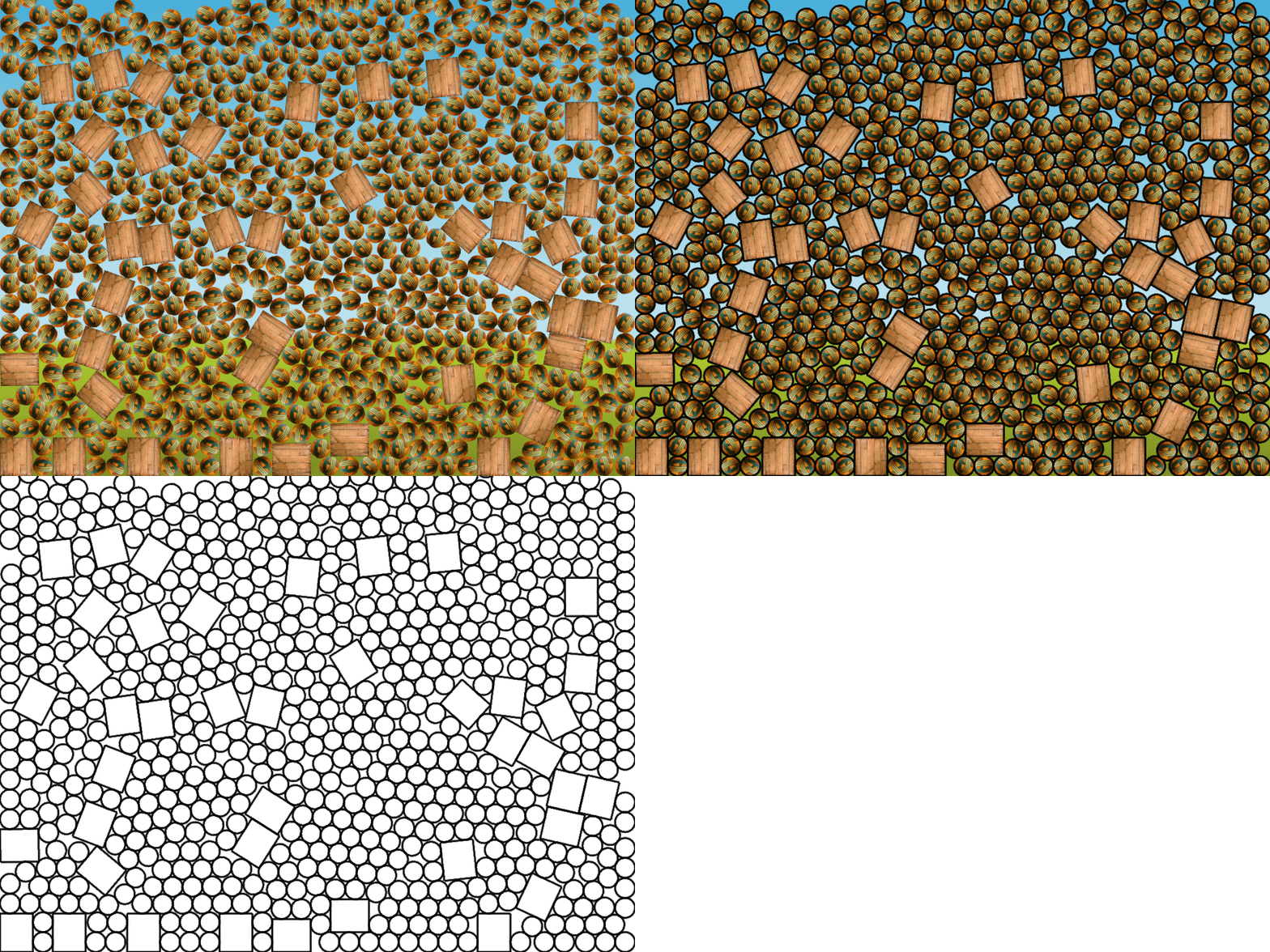
For a full list of keyboard commands see Section 2. The space bar drops a collection of balls and boxes that you can watch fall to the bottom of the screen and bounce around in a most satisfactory manner. Notice that they are created outside the window and enter from above, and that they may overlap at first before squeezing out. This is happily provided by Box2D without and need for code on our part. You can do this repeatedly or even hold the space bar down until the window is approximately full, at which time no further objects will be created. The Backspace key will delete all objects. Using the F2 key you can toggle between drawing sprites, sprites and shape outlines, and shapes only (see Fig. 2). Adding a line drawing option to the code lets us ensure that the collision shapes in Box2D line up properly with the outlines of the sprites.
There are three important things to notice in this code, and each is covered in a separate section below. Section 5.1 introduces the concepts of Physics World and Render World, the importance of keeping their scales different, and the method we use to ensure that scaling in the code is readable and maintainable. Section 5.2 shows you where and how Physics World is created in the code, and a function that must be called once per frame to maintain it. Section 5.3 shows you how the code manages game objects with their Render World sprites and their Physics World bodies.
Lets define Render World to be the world that you see in Fig. 1, made up of sprites and images, with units measured in pixels. Physics World is the world inside the physics engine, made up of floating point number and vectors, with its own units. The Box2D manual makes it clear that Physics World units should not be pixels, otherwise the stability of the equation solver may be called into doubt. (What equation solver you may ask? Remember the Ball and Spring Toy.) We choose to scale from Render World to Physics World by dividing by a factor of 10, which is set by changing the value of fPRV in GameDefines.h.
const float fPRV = 10.0f;
GameDefines.h also has some useful functions PW2RW to convert Physics World measurements to Render World for various types, for example,
inline float PW2RW(float x){return x*fPRV;};
functions RW2PW to convert Render World measurements to Physics World for various types, for example,
inline float RW2PW(float x){return x/fPRV;};
What can possibly go wrong? Your physics code might actually work perfectly even if you ignore this advice. That's probably because it is simple code without much interaction. But as your game or toy becomes more and more complicated you may find that Box2D becomes unstable. This is a property of all physics engines, not just Box2D. What do I mean by unstable? Lets just say that things will start to look weird. For example, you may have a bouncing cannonball as shown in Fig. 3. The one shown in Fig. 3 has a perfectly elastic bounce, but yours may not. You want it to eventually stop bouncing and come to rest, but it never completely does, instead it continues twitching as shown in Fig. 4. That's just one example of the weird behavior that you will see if you don't rescale your Physics units.


Physics World is created in CGame::Initialize and is accessible through a pointer CCommon::m_pPhysicsWorld. When creating the Box2D Physics World you need to specify the gravity as a parameter. There is nothing special about choosing the number 100 in the line of code below - it was chosen by experimenting until it "looked right".
m_pPhysicsWorld = new b2World(RW2PW(0, -100));
Physics World gets updated once per frame in CGame::ProcessFrame. The three parameters are the frame time, the number of move iterations, and the number of collision detection and response iterations. The latter two parameters are somewhat arbitrarily chosen defaults.
m_pPhysicsWorld->Step(m_pTimer->GetFrameTime(), 4, 2);
Game objects are represented by an object class CObject, which is managed by class CObjectManager. CObject keeps a pointer to the Box2D body associated with the object.
b2Body* m_pBody = nullptr;
CObject::b2Body is initialized by the CObject constructor CObject::CObject as follows:
CObject(eSprite, b2Body*);
This puts the onus on the code creating the object to first construct its body. This is the subject of Section 5.3.1. Section 5.3.2 shows the proper way of deleting physics bodies (no, you don't just delete them). Section 5.3.3 shows how to interrogate physics bodies so that their sprites can be drawn in the correct position and orientation.
CObjectManager::CreateCrate and CObjectManager::CreateBall are called from CGame::CreateObjects to create the crates and balls as seen in Fig. 1. CGame::CreateObjects is called from CGame::KeyboardHandler in response to the VK_SPACE key.
CObjectManager::CreateCrate takes two parameters x and y, which are the coordinates of the center of the object in Physics World coordinates. It first creates a Box2D body definition bd and sets its type field to b2_dynamicBody and its position to [x, y].
b2BodyDef bd;
bd.type = b2_dynamicBody;
bd.position.Set(x, y);
Then it gets the width w and height h of the crate in Render World by calling Sage::CSpriteRenderer::GetSize on the sprite type eSprite::Crate.
float w, h;
m_pRenderer->GetSize(eSprite::Crate, w, h);
Next we create a Box2D shape for the crate. A rectangle in Box2D is a special instance of b2PolygonShape, which handily has a special function for creating a rectangle shape called b2PolygonShape::SetAsBox. This takes as parameters the half width and half height of a rectangle. According to the Box2D manual this is to make it consistent with Box2D circle shapes which are created using the circle's radius (i.e. half width). I always seem to forget this so that the rectangles drawn in sprite and line mode do not align as shown in Fig. 5. Compare this with the correct version in Fig. 2.
b2PolygonShape s;
s.SetAsBox(RW2PW(w - 2.0f)/2.0f, RW2PW(h - 2.0f)/2.0f);
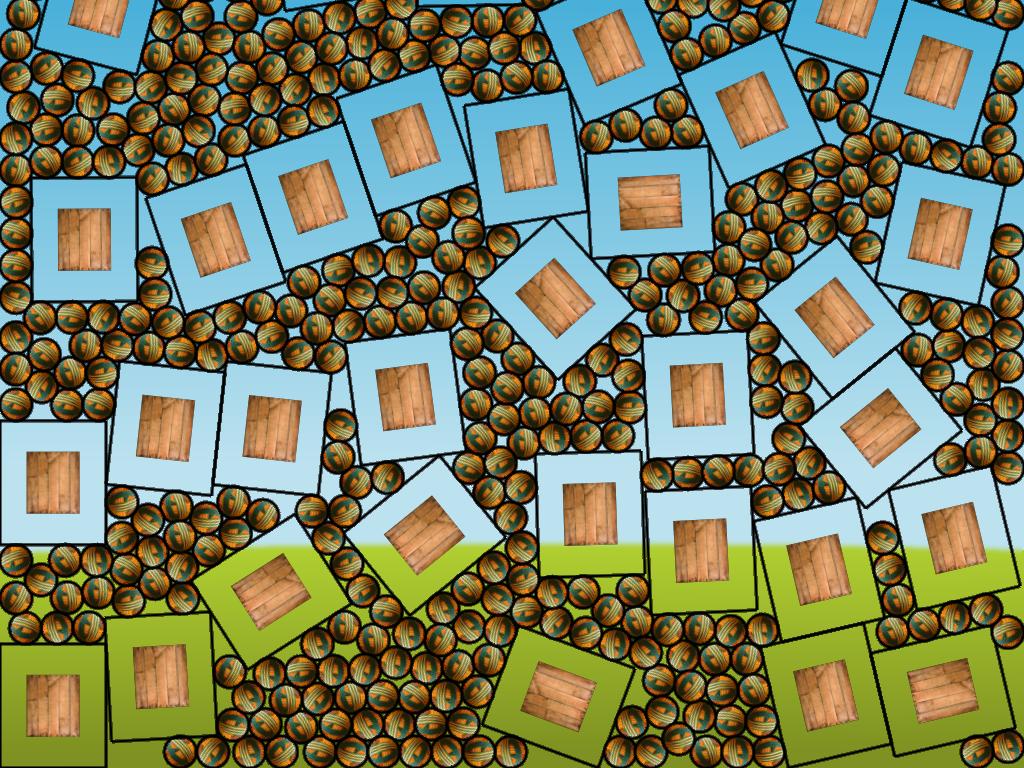
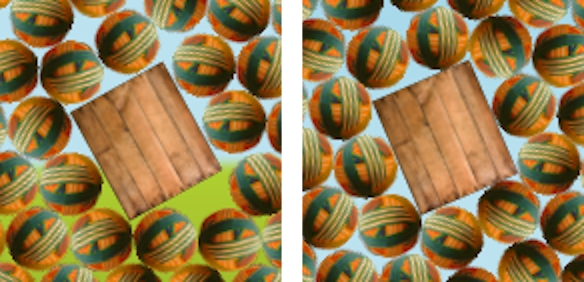
Note that we have subtracted two pixels from the Render World width and height before converting to Physics World units. This is because Box2D keeps a narrow border area around each shape to keep it away from other shapes. The sprite therefore needs to be a couple of pixels wider and taller than the shape. For example, Fig. 6 (left) shows the tiny gaps around a box created with
s.SetAsBox(RW2PW(w)/2.0f, RW2PW(h)/2.0f);
and Fig. 6 (right) shows the smaller or non-existent gap around a box created with the correct parameters.
s.SetAsBox(RW2PW(w - 2.0f)/2.0f, RW2PW(h - 2.0f)/2.0f);
Next we need a Box2D fixture which is used to attach a Box2D shape to a Box2D body. We declare a Box2D fixture definition b2FixtureDef called fd and set its shape field to be a pointer to the box shape s created above, its density field to 1.0f and its restitution field restitution to 0.3f. The restitution is a measure of how bouncy a fixture is. Setting it to 1.0f means a perfectly elastic collision. The value 0.3f was chosen by playing with it until it looked right.
b2FixtureDef fd;
fd.shape = &s;
fd.density = 1.0f;
fd.restitution = 0.3f;
Next we ask Box2D to create a body using the body definition bd by calling b2World::CreateBody which returns a pointer to the b2Body created. We save this in a local variable pCrate.
b2Body* pCrate = m_pPhysicsWorld->CreateBody(&bd);
Next we add a fixture to the body using the fixture definition fd created above.
pCrate->CreateFixture(&fd);
Finally we create an instance of CObject and append it at the end of the object manager's object list CObjectManager::m_stdList. Notice that the body definition, shape, and fixture definitions are all variables local to CObjectManager::CreateCrate. There is no need to save them. All we need is a pointer to the b2Body.
m_stdList.push_back(new CObject(eSprite::Crate, pCrate));
CObjectManager::CreateBall is similar except that is uses an instance of b2CircleShape instead of b2PolygonShape.
b2CircleShape s;
s.m_radius = RW2PW(m_pRenderer->GetWidth(eSprite::Ball)/2.0f);
CObjectManager also has a function CObjectManager::CreateWorldEdges to create edges at the left, right, and bottom of the window, the first two of which extend above the window in order to catch objects that bounce above the top of the window. It too is similar to the above but uses three instances of b2EdgeShape, one each for the left, right, and bottom of the window.
Physics bodies are destroyed in the CObject destructor CObject::~CObject:
m_pPhysicsWorld->DestroyBody(m_pBody);
This is called from CObjectManager::Clear and the CObjectManager destructor CObjectManager::~CObjectManager.
When not using a physics engine CObject would normally have a position variable Vector2 m_vPos and an orientation variable float m_fRoll and would be drawn using a call to Sage::CSpriteRenderer::Draw such as
m_pRenderer->Draw(m_eSpriteType, m_vPos, m_fRoll);
Instead, CObject::Draw uses b2Body::GetPosition to get the position from Box2D and b2Body::GetAngle to get the orientation:
const float a = m_pBody->GetAngle();
const b2Vec2 v = m_pBody->GetPosition();
m_pRenderer->Draw(m_eSpriteType, PW2RW(v), a);
Notice the use of PW2RW to convert Physics World units to Render World units (see Section 5.1).
Next, take a look at the Box2D Joint Toy. You may want to examine what the Box2D manual (which should be in the folder in which you installed Box2D from GitHub) says about the functions and structures used in this toy before you do this.
 1.12.0