 |
SAGE Physics Installation Guide
|
|
SAGE Physics Installation Guide
|
Some of the SAGE Physics Games require an open-source physics library, Box2D for 2D physics games and Bullet Physics for 3D physics games. Before we begin, make sure that you have followed the instructions for installing SAGE.
Some SAGE physics games require that you install a 2D physics engine called Box2D. First you must install CMake from https://cmake.org/. Make sure that you click the "Add CMake to the system PATH for the current user" radio button on the CMake Install Options dialog box when it appears. Then clone or download the source code for Box2D from https://github.com/erincatto/Box2D. Run Build.bat, which will open Box2D.sln in Visual Studio. Build the project box2d in both Debug and Release configurations for the x64 platform. Finally, create an environment variable BOX2D_DIR and set it to folder into which you cloned or downloaded Box2D. Mine is set to C:\Users\ian\Documents\GitHub\Box2D\.
Some SAGE physics games require that you install a 3D physics engine called Bullet Physics. Clone or download the source code for Bullet Physics from https://github.com/bullet3/bullet3. Run build_visual_studio_vr_pybullet_double.bat. This will create 0_Bullet3Solution.sln, which is a solution file for an older version of Visual Studio. Open 0_Bullet3Solution.sln in Visual Studio. It will ask you to retarget all of the projects in the solution. Click OK.
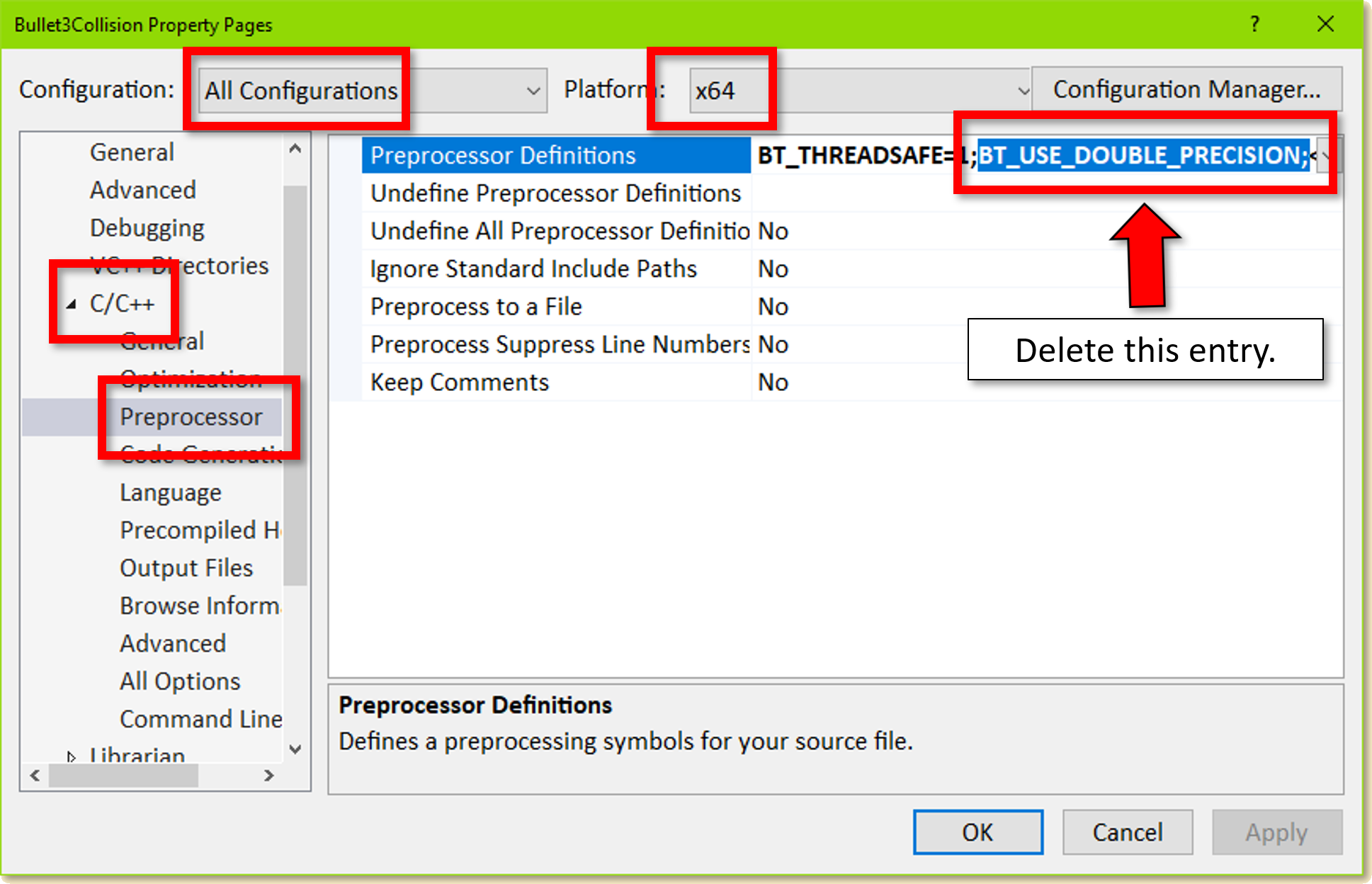
In the Visual Studio Solution Explorer, select the projects BulletCollision, BulletDynamics, and LinearMath (Note: not Bullet3Collision and Bullet3Dynamics). Right-click on one of them and select Properties. We have to change some settings to make it compatible with the rest of our code before we build it. Firstly we need to change the precision from double to float. In the Property pages (see Fig. 2) for All Configurations of the platform x64 select C/C++ then Preprocessor in the left pane and Preprocessor Definitions in the right pane. Delete the string BT_USE_DOUBLE_PRECISION; and click OK. This is shown in Fig. 2.
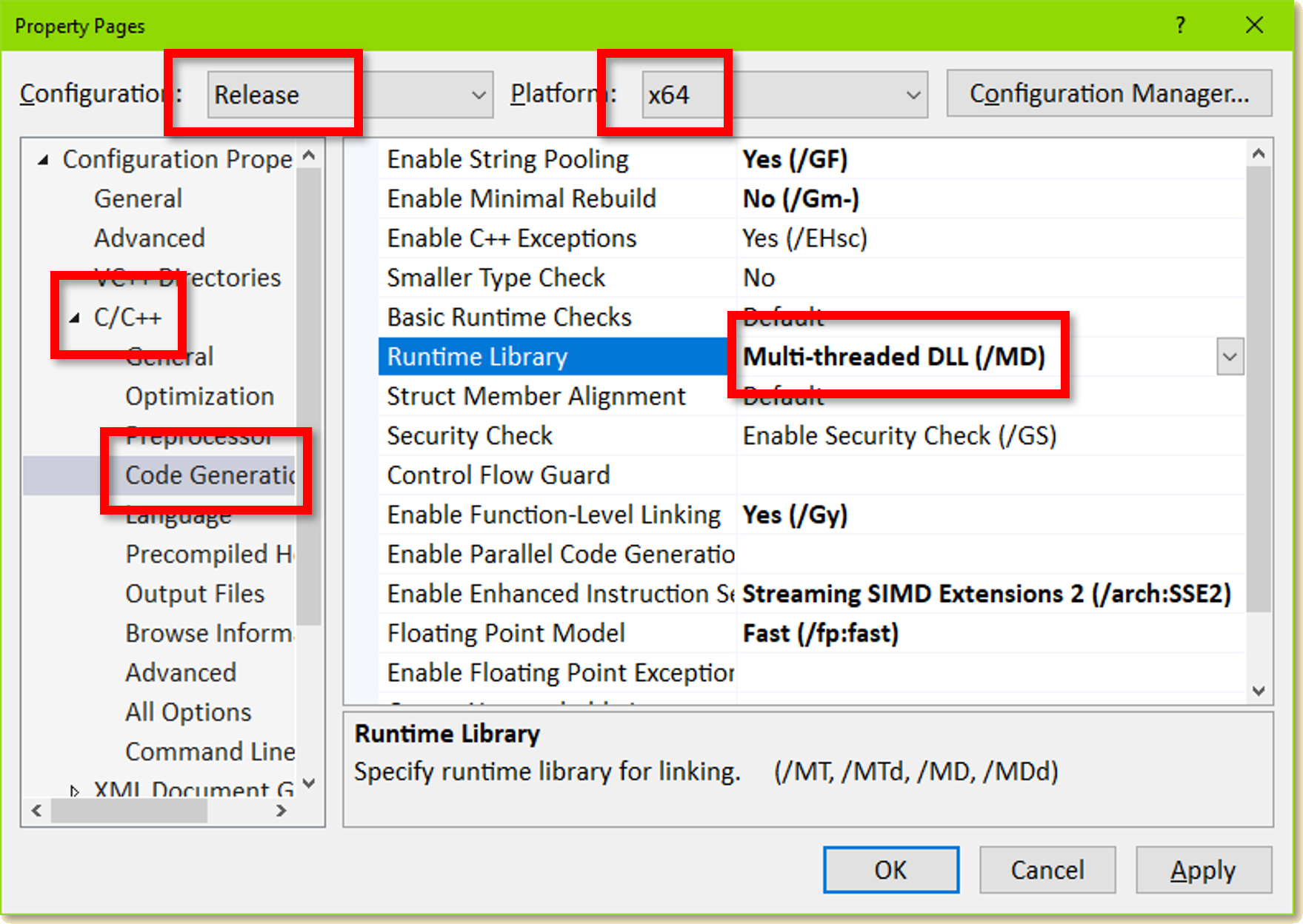
Secondly, we need to change the run-time library to Multi-threaded DLL. This is done as follows. On the same page as above, select the Release configuration of the platform x64. Next, select C/C++ then Code Generation in the left pane and Runtime Library in the right pane. Select Multi-threaded DLL (/MD) from the drop-down menu beside it. This is shown in Fig. 3. Do the same for the Debug configuration of the platform x64, but in this case select Multi-threaded Debug DLL (/MDd) from the drop-down menu.
Build the three projects mentioned above in both Debug and Release configurations for the x64 platform. Finally, create an environment variable BULLET_DIR and set it to folder into which you cloned or downloaded Bullet Physics. Mine is set to C:\Users\ian\Documents\GitHub\bullet3\.
 1.12.0